Git how to resolve merge conflicts: fix “automatic merge failed fix conflicts and then commit the result” and “this branch has conflicts that must be resolved” in Azure DevOps pull requests.
Table of Contents
What Is a Merge Conflict and Why Does It Happen?
A merge conflict occurs when Git tries to combine two branches but cannot automatically decide which version of the code to keep. Git is remarkably good at merging — it can handle hundreds of files changing in parallel. But when two people edit the same lines of the same file, or when one person deletes a file that another person modified, Git stops and asks you to decide.
Understanding the three-way merge model helps: Git looks at the shared ancestor commit, your changes, and the other branch’s changes. If both sides changed the same spot, that’s a conflict.
How a conflict is born
main at commit abc123.
Alice changes line 14 of config.js to set timeout: 5000.
Bob changes the same line to set timeout: 3000. When either one merges
back into main, Git has no way to know which timeout is correct —
so it flags a conflict and waits for a human to decide.“This branch has conflicts that must be resolved” — what it means
This message appears in GitHub, GitLab, Bitbucket, and Azure DevOps
pull request interfaces. It means the target branch (usually main or
develop) has received commits that conflict with commits on your feature
branch. The platform is blocking the merge button to protect you from data loss.
What happens to your code
“Automatic merge failed; fix conflicts and then commit the result” — what Git is telling you
This is the terminal message you see after running git merge or
git pull when Git encounters a conflict. Here is what it looks like in full:
Terminal output
CONFLICT (content): Merge conflict in src/config.js
Automatic merge failed; fix conflicts and then commit the result.
Git is telling you three things: which file(s) conflict, that it stopped without completing the merge, and exactly what to do next — fix the conflicts, then commit. Your working directory is now in a merging state, and Git has inserted conflict markers directly into the conflicting files to show you both sides.
Do not run git merge again
git merge
again will give you an error. Resolve the conflicts, stage the files, then commit — or run
git merge --abort to cancel the merge entirely.How to Identify Conflict Markers in Your Code
When Git detects a conflict, it does something concrete: it edits the conflicting file and inserts conflict markers — special lines that clearly label “your side” and “their side.” You must read and remove these markers before the code can compile or run.
Understanding <<<<<<<, =======, and >>>>>>>
The three conflict markers divide a conflicted block into two halves:
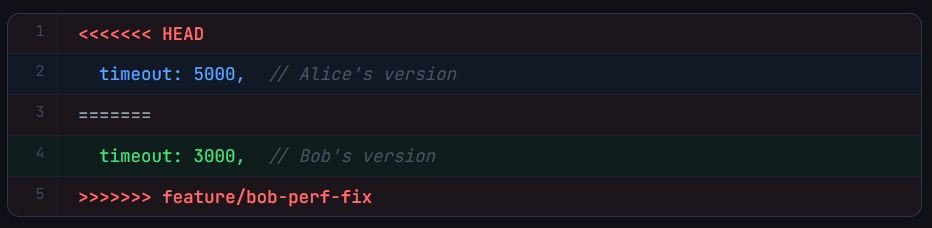
<<<<<<< HEAD— marks the start of your changes (the branch you were on when you ran merge)=======— the dividing line between the two versions>>>>>>> branch-name— marks the end of the incoming changes (the branch you are merging in)
Diff3 style — see the original too
git config --global merge.conflictstyle diff3 to also show the
original content (the common ancestor) between the two conflict halves. This
makes it much easier to understand what each side changed, not just what they
ended up with.How to find all conflicting files
After a failed conflicts merge, you have several ways to discover which files need attention:
# Method 1 — git status (fastest)
git status

# Method 2 — list only conflicted files
git diff --name-only --diff-filter=U

# Method 3 — grep for conflict markers across all files
grep -rn "<<<<<<<" .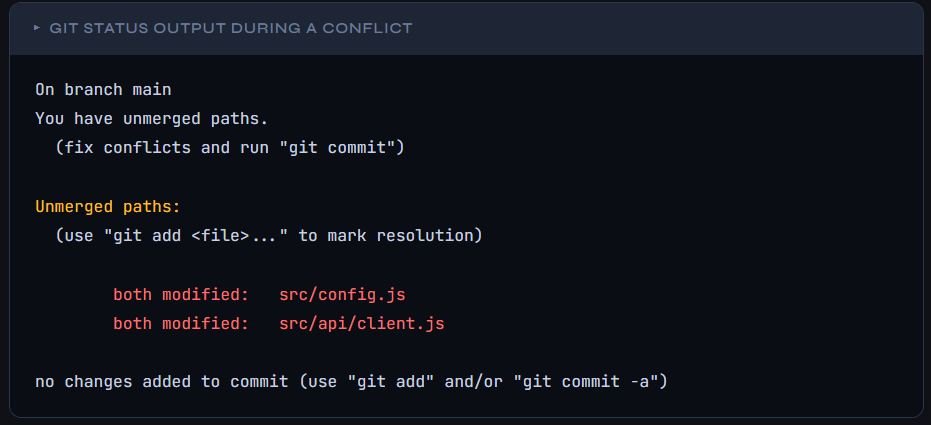
How to Resolve Merge Conflicts Manually
Manual resolution is the most fundamental skill — even if you use a GUI tool, you need to understand what you are choosing. The process always follows the same three steps: edit the file, stage it, commit.
Choosing one side vs. combining changes
You have three options when you look at a conflict block:
Option A – Keep your version (HEAD)
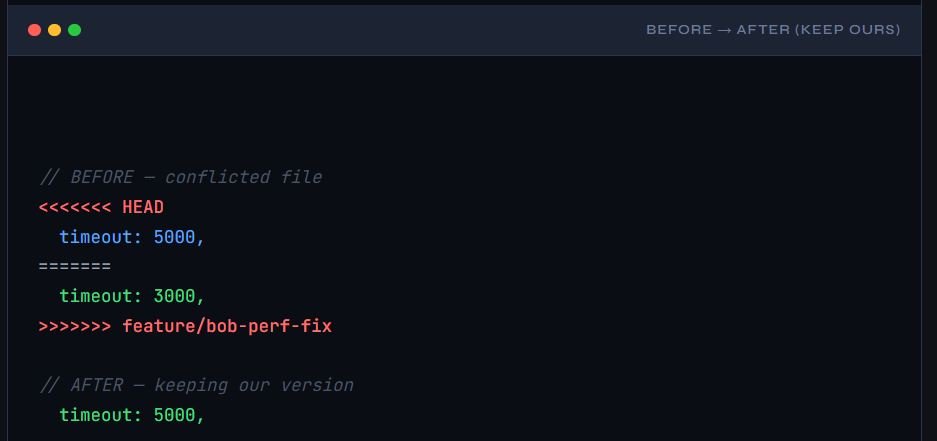
Option B – Accept the incoming version
Option C – Write a combined resolution
// AFTER — combined: use Alice's timeout but add Bob's comment
timeout: 5000, // increased for slower networks (was 3000)Never leave conflict markers in the file
<<<<<<<, =======, and >>>>>>>
lines must all be removed from the final file. If any marker survives, your code will break —
JavaScript will throw a syntax error, Python will fail to parse, and so on.Marking conflicts as resolved with git add
Once you have edited a file and removed all conflict markers, you must explicitly tell
Git the conflict is resolved. This is done with git add:
# Stage each resolved file individually
git add src/config.js
git add src/api/client.js

# Or stage everything at once
git add .

# Verify — no more "Unmerged paths" should appear
git statusStatus after staging resolutions
Completing the merge with git commit
Once all conflicts are staged, finalize the merge with a commit. Git will pre-populate a merge commit message for you — you can accept it or customize it:
1. Run git commit
git commit
# Git opens your editor with a pre-filled message:
# Merge branch 'feature/bob-perf-fix' into main
# ...2. Save and close the editor (or use -m)
# Or skip the editor entirely:
git commit --no-edit3. Push the result (if working with a remote)
git push origin mainSuccessful merge output
Pro tip
git merge --abort at any point before committing. This returns your repository to exactly the state it was in before you started the merge.Best Tools to Resolve Merge Conflicts
Manual text editing works, but a visual merge tool makes conflict resolution significantly faster and less error-prone — especially for large diffs. Here are the best options depending on your workflow.
Built-in: git mergetool
Git ships with a mergetool command that launches a configured merge tool
for each conflicted file. You can set your preferred tool once and use it every time:
# Set VS Code as the default merge tool globally
git config --global merge.tool vscode
git config --global mergetool.vscode.cmd \
  'code --wait $MERGED'

# Set vimdiff (no install required)
git config --global merge.tool vimdiff

# Launch the tool on all conflicted files
git mergetoolBackup files
git mergetool creates .orig backup files by default. To disable them:
git config --global mergetool.keepBackup falseVS Code merge editor
VS Code has a first-class merge editor with an inline 3-way diff view. When you open a conflicted file, VS Code shows “Accept Current Change”, “Accept Incoming Change”, “Accept Both Changes”, and “Compare Changes” inline — no configuration required.
# Open the conflicted file directly in VS Code
code src/config.js

# Or use VS Code as git mergetool (see above)
# The 3-way merge editor opens automatically for .git conflictsVS Code tip
git.mergeEditor: true) to always use the dedicated 3-panel merge editor instead of the inline view. It shows ancestor, ours, and theirs simultaneously.IntelliJ / WebStorm
JetBrains IDEs include one of the most powerful merge editors available. The 3-pane view shows your version (left), the result (center), and the incoming version (right). You can accept individual changes with arrow buttons and edit the result pane directly.
1. VCS menu → Git → Resolve Conflicts
2. Double-click a conflicted file
3. Use << / >> arrows to accept change blocks
4. Click "Apply" when done
5. Commit via VCS → Commit (Ctrl+K)Sublime Merge, GitKraken, and others
Sublime Merge – Paid / Free trial
GitKraken – Free / Pro
Sourcetree – Free
vim / Neovim + fugitive – Free
vim-fugitive provides a :Gdiff command with a three-pane merge view. Combine with diffget //2 and diffget //3 shortcuts to accept changes block by block.| Tool | 3-way view | Terminal | GUI | Free |
|---|---|---|---|---|
| VS Code | ✓ | ✓ | ✓ | ✓ |
| IntelliJ IDEA | ✓ | ✕ | ✓ | Community ed. |
| Sublime Merge | ✓ | ✕ | ✓ | Trial only |
| GitKraken | ✓ | ✕ | ✓ | Free tier |
| vimdiff | ✓ | ✓ | ✕ | ✓ |
How to Prevent Merge Conflicts in the First Place
You cannot eliminate merge conflicts entirely — they are a natural result of parallel development. But you can dramatically reduce their frequency and severity with a few disciplined habits.
Keep branches short-lived
The longer a branch lives, the more the base branch diverges from it, and the bigger the conflict when you finally merge. Aim to merge feature branches in days, not weeks.
Trunk-based development
main multiple times per day
using feature flags to hide incomplete work. This makes conflicts small and easy to resolve
because each branch diverges by hours, not weeks.Branch lifespan vs. conflict risk
1 week: Moderate risk. Plan to update the branch before merging.
2+ weeks: High risk. Expect conflicts, and expect them to take time. Consider breaking the feature into smaller pieces.
Pull and rebase frequently
Keeping your branch up to date with the base branch means smaller gaps and smaller conflicts. Two strategies — pick one and be consistent:
# While on your feature branch, pull in latest main
git fetch origin
git merge origin/main

# Resolve any conflicts early, while they're still small
# Rebase your commits on top of the latest main
git fetch origin
git rebase origin/main
# If conflicts occur during rebase, resolve each commit's
# conflict one at a time, then:
git add .
git rebase --continue
# To abort the rebase and return to before:
git rebase --abort- Communicate with your team before editing shared files — a quick Slack message prevents half of all conflicts
- Split large files into smaller modules — conflicts in a 50-line file are trivial; conflicts in a 2,000-line file are painful
- Use
.gitattributesto define merge strategies for generated files (e.g., lock files, compiled assets) - Configure CI to block merges where the branch is more than N commits behind
main - Consider using
git rerere(reuse recorded resolution) to auto-apply resolutions you’ve already made to identical conflicts
# Enable rerere globally — Git will remember your resolutions
git config --global rerere.enabled true

# After resolving a conflict once, Git will auto-resolve
# the identical conflict if it appears again (e.g., during rebase)Frequently Asked Questions
Can I resolve GIT merge conflicts directly in GitHub or GitLab without using the terminal?
What is the difference between git merge –abort and git reset –hard?
git merge --abort safely cancels a merge that is in progress (after a conflict), returning your working directory to the exact state it was in before you ran git merge. It only works while a merge is in progress.git reset --hard HEAD is more aggressive — it discards all uncommitted changes and moves HEAD to the specified commit. Use this only if git merge --abort is not available or does not work. Be aware that reset --hard can discard work you wanted to keep.Why do I keep getting conflicts in package-lock.json or yarn.lock?
1. Accept either side of the conflict (delete all markers, keep one version).
2. Run
npm install or yarn install to regenerate the lock file from scratch.3. Stage and commit the regenerated lock file.
You can also add a
.gitattributes entry to use the “ours” merge driver for lock files: package-lock.json merge=ours — then always regenerate after merging.What does "deleted by us" or "deleted by them" mean in git status?
To keep the file:
git add <filename>To delete the file:
git rm <filename>Then commit as normal. Make sure to communicate with the person who made the other change — deletion conflicts often signal a structural disagreement about the codebase.
Can I undo a merge after I've already committed it?
git reset --hard HEAD~1 removes the merge commit entirely.If you have already pushed: use
git revert -m 1 <merge-commit-hash> to create a new commit that undoes the merge without rewriting history. The -m 1 flag tells Git which parent to treat as the mainline (usually 1 = the branch you merged into).What's the difference between resolving conflicts during a merge vs. a rebase?
git add. The key difference is the workflow after resolving:After a merge conflict: run
git commitAfter a rebase conflict: run
git rebase --continueDuring a rebase, you may encounter conflicts for each commit being replayed, so you might resolve conflicts several times before the rebase completes. This is normal — each resolution is applied to one commit in the sequence.
How do I resolve conflicts in binary files (images, PDFs)?
Keep your version:
git checkout --ours -- path/to/file.pngKeep the incoming version:
git checkout --theirs -- path/to/file.pngThen stage and commit as usual. If the binary file genuinely needs both sides combined (unlikely), you must do that outside of Git and commit the result manually.
Also read proven strategies to follow best branching git workflow.