Learn how to create a new branch in Git step-by-step. Discover commands to create a branch from the current branch, another branch, specific commit, tag, or master—and how to push it to remote. Perfect for beginners and advanced developers using GitHub or any Git workflow.
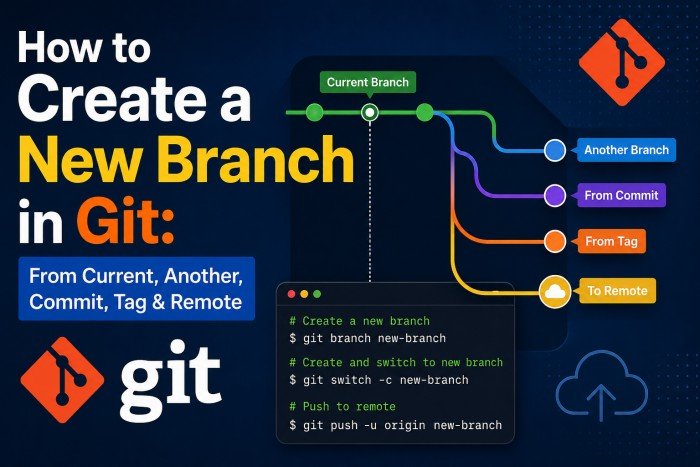
Table of Contents
What Does “Create a Branch in Git” Mean?
In Git, a branch is a lightweight, movable pointer to a commit. When you create a branch, you’re not duplicating the entire repository — you’re simply telling Git to track a new line of development starting from a specific point in history. The working files remain identical until you start making changes on that branch.
Understanding the git command to create new branch workflows is one of the most foundational skills in modern software development. Whether you’re adding a feature, fixing a bug, or experimenting with a new idea, branching lets you do it safely in isolation.
Why branching is important in Git workflows
The entire Git workflow — GitFlow, GitHub Flow, trunk-based development — is built around the idea that the main branch should always be stable. Every change lives on its own branch until it’s reviewed, tested, and ready to merge.
- Isolates work so failures don’t affect the main codebase
- Enables parallel development across multiple features or team members
- Makes code review (pull requests) a natural part of the workflow
- Provides a clean history that’s easy to understand and revert
- Powers CI/CD pipelines — each branch can trigger its own test suite
When you should create a new branch
Create a new branch whenever you’re starting work that you don’t want to land immediately in the main codebase. Practically, that means:
Common Branching Triggers
feature/ branch before writing the first line of code.Bug fixes: Even small fixes deserve a branch. It makes the PR reviewable and the history meaningful.
Hotfixes: Branch off the production tag or release branch, not
main, so you include only the fix.Experiments: Prototypes, spikes, and proof-of-concept work — branch freely and delete when done.
Releases: Many teams cut a
release/1.4.0 branch from main for final stabilization before shipping.Git Command to Create a New Branch
The core git command to create new branch is git branch. It’s simple, low-level, and does exactly one thing: creates a branch pointer. It does not switch you to the new branch.
Basic command: git branch <branch-name>
# Create a new branch called "feature/login"
git branch feature/login

# List all local branches to verify it was created
git branchOutput
Notice the * still points to main. You created the branch but didn’t switch to it.
Difference between creating and switching branches
This is one of the most common points of confusion for new Git users. The git branch command only creates. You need a separate step to switch:
| Goal | Command | Switches? |
|---|---|---|
| Create only | git branch feature/x | No |
| Create + switch (classic) | git checkout -b feature/x | ✔ Yes |
| Create + switch (modern) | git switch -c feature/x | ✔ Yes |
| Switch to existing | git switch feature/x | ✔ Yes |
Git Create Branch and Checkout (Switch)
In day-to-day work, you almost always want to create the branch and immediately start working on it. Git gives you two shorthand commands for this.
Using git checkout -b
The classic way to git create branch and checkout in a single step. The -b flag tells checkout to create the branch if it doesn’t exist, then switch to it.
# Create "feature/user-auth" and switch to it immediately
git checkout -b feature/user-authOutput
Using git switch -c (modern approach)
Git 2.23 introduced git switch to separate the concerns of git checkout, which was overloaded with too many responsibilities. The -c flag means “create.” This is the recommended modern approach.
# Identical result to checkout -b, but clearer intent
git switch -c feature/user-auth

# Verify you're on the right branch
git branch --show-currentOutput
Pro Tip
checkout -b and switch -c produce identical results. Use switch -c in new projects and scripts — it’s more readable and less error-prone. Use checkout -b when working on older Git installs (pre-2.23) or following legacy docs.Git Create New Branch from Current Branch
When you run git branch <name> or git switch -c <name> without specifying a starting point, Git automatically uses your current HEAD commit as the base. This means the new branch starts as an exact copy of wherever you are right now.
Default behavior explained
This is the most common branching pattern. You’re on main, it’s up to date, and you want to git create a new branch from current position to start feature work:
# You're on main — these two are equivalent:
git switch -c feature/dark-mode
git switch -c feature/dark-mode main  # explicit is also fine

# Inspect the starting point
git log --oneline -3Output
Example workflow
Real-World Scenario: Feature Branch from Main
main, then branch off for the week’s work:# 1. Make sure you're on main
git switch main
# 2. Pull the latest changes
git pull origin main
# 3. Create your feature branch from the freshest main
git switch -c feature/payment-gateway
# 4. Start coding — your work is now isolatedGit Create Branch from Another Branch
Sometimes you need to git create branch from another branch — not the one you’re currently on. For example, you may be on feature/dashboard but want a sub-branch off develop, or you need to hotfix off a release branch without switching your working context first.
Step-by-step example
# Syntax: git branch <new-branch> <source-branch>

# You're currently on "feature/dashboard"
git branch --show-current
# feature/dashboard

# Create "hotfix/checkout-bug" from "release/2.3", staying where you are
git branch hotfix/checkout-bug release/2.3

# Now switch to it when ready
git switch hotfix/checkout-bug

# Or do it all in one step with switch -c:
git switch -c hotfix/checkout-bug release/2.3Common mistakes to avoid
Watch Out
release/2.3 hasn’t been fetched recently, your new branch won’t include the latest remote commits. Always run git fetch origin before branching from a non-main branch.# Fetch everything from remote without merging
git fetch origin
# Branch from the remote-tracking reference to guarantee freshness
git switch -c feature/new-report origin/developGit Create New Branch from Master (or Main)
Branching from the primary integration branch is the most common operation in any Git workflow. Whether you’re doing git create new branch from master or from main, the commands are identical — only the branch name changes.
Why “main” vs “master” matters
GitHub changed the default branch name from master to main in October 2020. GitLab followed. New repositories default to main; older ones may still use master. Always check which name your project uses before scripting:
# Option 1: List branches and look for the asterisk
git branch -a

# Option 2: Query the remote's HEAD directly
git remote show origin | grep "HEAD branch"Output
# If your default branch is "main":
git switch main
git pull origin main
git switch -c feature/api-refactor

# If your default branch is still "master":
git switch master
git pull origin master
git switch -c feature/api-refactorKeeping your branch up to date
Once you’ve been working on your branch for a few days, main may have moved ahead. Keep your branch in sync by rebasing (preferred for a clean history) or merging:
# Option A: Rebase (cleaner history)
git fetch origin
git rebase origin/main

# Option B: Merge (preserves branch topology)
git merge origin/mainGit Create Branch from Specific Commit
Branching from a specific commit is invaluable for hotfixes, bisect investigations, and reconstructing historical state. To git create branch from specific commit, you need the commit’s SHA hash — a 40-character (or abbreviated 7-character) identifier.
Finding the commit hash with git log
# Pretty one-line log — easy to scan
git log --oneline --graph -10

# Search commits by message keyword
git log --oneline --grep="payment"

# Find commits that changed a specific file
git log --oneline -- src/checkout.jsOutput — pick your target SHA
Creating branch from commit
# Use the full or abbreviated SHA as the start point
git switch -c hotfix/payment-url 4de2f11

# Verify the branch starts at the right commit
git log --oneline -3Output
Note
Git Create Branch from Tag
Tags in Git mark specific points in history — typically release versions like v2.1.0. When you need to hotfix a shipped version or reproduce a bug that was reported against a specific release, you’ll want to git create branch from tag.
When to branch from a tag
Real-World Scenario: Production Hotfix
main has moved on with unrelated work. You need to patch v3.2.0 specifically — so you branch from the tag, not from main.Example command
# See all tags (sorted by version)
git tag --sort=-version:refname | head -5

# Fetch tags from remote if needed
git fetch origin --tags

# Create a hotfix branch from tag v3.2.0
git switch -c hotfix/v3.2.1 v3.2.0

# Verify: you should be at the tagged commit
git log --oneline -2Output
Lightweight vs Annotated Tags
git tag -a) carry extra metadata (tagger, date, message) but the branching command is the same either way.Git Create Branch and Push to Remote
A branch created locally exists only on your machine until you push it. To git create branch and push to remote — making it visible to your teammates and triggering CI — you need one extra step.
First push with upstream (-u)
The -u flag (short for --set-upstream) links your local branch to the remote branch. After the first push, you can use plain git push and git pull without specifying the remote or branch name.
# Create branch locally
git switch -c feature/notifications

# Make a commit (remote push requires at least one commit or -u works anyway)
git add .
git commit -m "feat: add notification badge component"

# Push and set upstream tracking in one command
git push -u origin feature/notifications

# All future pushes on this branch can now just be:
git pushOutput
Verifying the branch on remote
# List remote branches
git branch -r

# Or list all (local + remote)
git branch -a

# Check tracking info
git branch -vvgit branch -vv output
GitHub: How to Create a New Branch
If you prefer a visual interface, GitHub makes it easy to create branches directly in the browser — no terminal required. Here’s exactly how to do it when wondering about github how to create new branch.
Creating a branch in the GitHub UI
- Navigate to your repository on GitHub.
- Click the branch selector dropdown — it shows the current branch name (usually
main) near the top-left of the file list. - In the search box that appears, type your new branch name (e.g.,
feature/dark-mode). - If no existing branch matches, GitHub shows a “Create branch: feature/dark-mode from main” option — click it.
- The page refreshes and you’re now viewing the new branch. GitHub automatically bases it on whatever branch was selected when you opened the dropdown.
GitHub Shortcut
CLI vs GitHub UI comparison
| Aspect | Terminal (CLI) | GitHub UI |
|---|---|---|
| Speed (experienced user) | ✔ Faster | Slower (navigation) |
| Custom starting point | ✔ Any commit, tag, or branch | Current branch only |
| Visibility for new users | Learning curve | ✔ Visual & intuitive |
| Scripting & automation | ✔ Scriptable | Not scriptable |
| Offline use | ✔ Works offline | Requires internet |
| Draft PR on creation | Separate step | ✔ Prompt shown immediately |
For most day-to-day development, the CLI is faster and more powerful. The GitHub UI shines for quick branch creation without switching context, especially for non-engineers (designers, PMs) who need to create feature branches.
Common Errors When Creating Git Branches
Even experienced developers hit these snags. Here’s how to diagnose and fix the most common ones.
Branch already exists
git switch -c feature/login
fatal: A branch named 'feature/login' already exists.Fix
git switch feature/login, choose a different name, or (if you’re sure) delete the old branch first with git branch -d feature/login and recreate it.Detached HEAD issues
A “detached HEAD” happens when you check out a commit, tag, or remote branch directly instead of a local branch pointer. Commits made in this state are not attached to any branch and can be lost.
# You might see this after checking out a commit directly
HEAD detached at 4de2f11

# Fix 1: Create a branch right now to "save" your position
git switch -c recovery/detached-work

# Fix 2: Go back to main and abandon detached state
git switch mainWrong base branch
You created a branch off develop when you meant to branch from main. The branch contains extra commits you didn’t want.
# Rebase "feature/x" so it branches from "main" instead of "develop"
git rebase --onto main develop feature/x

# Syntax: --onto <new-base> <old-base> <branch>Before Rebasing a Pushed Branch
git merge instead to avoid force-push conflicts.Best Practices for Git Branching
Good branching habits make repositories easier to navigate, review, and maintain. These practices are distilled from real teams shipping software at scale.
Naming conventions
Branch names are read by humans and parsed by CI systems. See also 10 Best Practices for Git Branch Naming every developer should follow. Use a consistent, hierarchical naming scheme:
| Type | Pattern | Example |
|---|---|---|
| Feature | feature/<description> | feature/user-notifications |
| Bug fix | fix/<issue-or-desc> | fix/login-redirect-loop |
| Hotfix | hotfix/<version-or-desc> | hotfix/v3.2.1 |
| Release | release/<version> | release/4.0.0 |
| Chore/refactor | chore/<description> | chore/upgrade-webpack |
| Experiment | experiment/<description> | experiment/webassembly-render |
Naming Rules
feature/JIRA-1234-dark-mode.When to delete branches
Stale branches are repository clutter. Delete them after merging — both locally and on the remote:
# Delete local branch (safe — refuses if unmerged)
git branch -d feature/payment-gateway

# Force delete (use when branch was squash-merged or rebased)
git branch -D feature/payment-gateway

# Delete remote branch
git push origin --delete feature/payment-gateway

# Prune stale remote-tracking references locally
git fetch origin --prune

# List merged branches you can safely delete
git branch --merged mainKeeping branches clean
- Short-lived branches: Aim to merge within a few days. The longer a branch lives, the harder it becomes to merge back.
- Single purpose: One branch = one concern. Don’t mix a feature and an unrelated refactor in the same branch.
- Small, frequent commits: Commit logical units of work, not entire features in one shot — this makes review and bisect much easier.
- Rebase before merging: Keep your feature branch up to date with
mainby rebasing regularly, so the final merge is clean. - Protect
main: Configure GitHub branch protection rules — require PR reviews, passing CI, and no direct pushes tomain.
Quick Summary: Git Branch Commands Cheat Sheet
Every scenario covered in this guide — one command per row, no preamble needed.
Creating Branches
| Scenario | Command |
|---|---|
| Create branch (no switch) | git branch <name> |
| Create + switch (classic) | git checkout -b <name> |
| Create + switch (modern) | git switch -c <name> |
| Create from another branch | git switch -c <name> <source-branch> |
| Create from specific commit | git switch -c <name> <commit-sha> |
| Create from tag | git switch -c <name> <tag-name> |
| Create from remote branch | git switch -c <name> origin/<branch> |
Switching & Listing
| Scenario | Command |
|---|---|
| Switch to existing branch | git switch <branch> |
| Show current branch | git branch –show-current |
| List local branches | git branch |
| List all (local + remote) | git branch -a |
| List with tracking info | git branch -vv |
Remote Operations
| Scenario | Command |
|---|---|
| Push + set upstream | git push -u origin <branch> |
| Push (after upstream set) | git push |
| Fetch all remote branches | git fetch origin |
| Delete remote branch | git push origin –delete <branch> |
| Prune stale remote refs | git fetch origin –prune |
Cleanup
| Scenario | Command |
|---|---|
| Delete merged local branch | git branch -d <branch> |
| Force delete local branch | git branch -D <branch> |
| List merged branches | git branch –merged main |
| Rename current branch | git branch -m <new-name> |
The Golden Rule
-u on the first push. These two habits alone prevent the majority of branch-related headaches.Also read about the best branching Git workflow to follow with 7 proven strategies used by top developers and teams.