Learn how to remove the last commit in Git using simple and safe methods. This guide covers git reset, git amend, and other techniques to discard, undo, or fix your last commit locally or remotely with practical examples.
Prefer a visual explanation? Watch the video below where I demonstrate how to change a Git commit message step by step, including real examples for both before and after pushing changes.
Table of Contents
When You Need to Remove the Last Git Commit
Every developer, at some point, makes a commit they immediately regret. Maybe you typed the wrong commit message, staged the wrong files, or shipped code that simply wasn’t ready. Knowing how to git remove last commit — without panicking and without breaking your team’s history — is one of the most valuable skills you can have.
The good news: Git was built for exactly this kind of mistake. Before you reach for drastic measures, let’s walk through the most common situations:
Scenario 1 — Wrong Commit Message
git commit -m "fix bug" but your team’s convention requires "fix(auth): resolve token expiry issue". The commit is local, you haven’t pushed yet — you just need to reword it.Best approach:
git commit --amend — no need to remove the commit at all.Scenario 2 — Committed Wrong Files
.env, your credentials file, or a completely unrelated feature and committed it all together. You need to undo that commit and re-stage only the right files.Best approach:
git reset --soft HEAD~1 — your changes come back staged, ready to re-sort.Scenario 3 — Need to Completely Discard Changes
Best approach:
git reset --hard HEAD~1 — but read the warning section first.Understanding which tool to reach for is half the battle. The rest of this guide walks through each method in detail.
Git Remove Last Commit (Keep Changes) – Soft Reset
The safest way to git reset last commit while keeping all your work intact is the soft reset. This removes the commit from the history but leaves your changes staged in the index — exactly as they were right before you ran git commit.
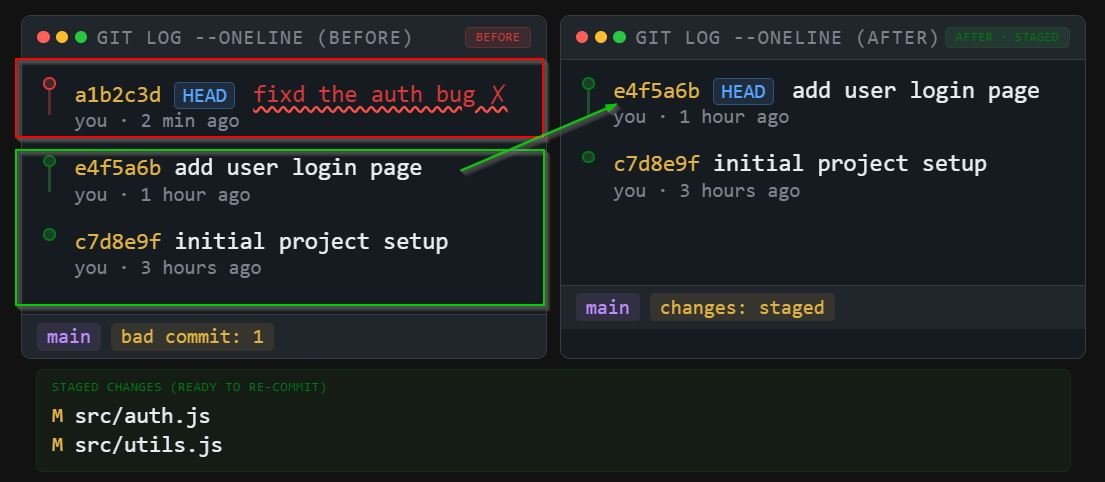
# Remove the last commit but keep all changes staged
git reset --soft HEAD~1What Happens After This Command
git add on them). Your working directory is completely untouched.Breaking It Down
HEAD~1 simply means “one commit before HEAD” — in other words, the commit right before the one you want to remove. You can also use the commit hash directly:
# Using the commit hash explicitly
git reset --soft a3f9c2d

# Verify the reset worked
git log --oneline -5
b7e1234 (HEAD -> main) Previous commit still here
...

# Your staged changes are ready to re-commit
git status
Changes to be committed:
  modified:   src/auth.js
modified: src/token.jsWhen to Use Soft Reset
- You want to rewrite the commit message or split one commit into multiple smaller ones.
- You accidentally committed to the wrong branch and need to move the changes.
- You need to add more files to the commit before pushing.
- Your changes are correct, but the commit itself needs restructuring.
Pro Tip
git commit -m "Better message" to re-commit everything with an improved message — making this the fastest way to fix a bad commit that hasn’t been pushed yet.Git Remove Last Commit (Discard Changes) – Hard Reset
When you need to git discard last commit along with every single file change it introduced, the hard reset is your tool. This is the nuclear option — it rewinds your branch pointer and wipes the working directory clean.
# Permanently discard the last commit AND all its changes
git reset --hard HEAD~1Data Loss Warning
git reflog. All uncommitted changes in your working directory and staging area will be permanently deleted. There is no Trash bin or Undo in Git for this — once it’s gone, it’s gone. Double-check before running this command.What Happens After This Command
Emergency Recovery With git reflog
If you run a hard reset by mistake, act fast. Git keeps a log of every action for about 30 days:
# Show the reflog to find the lost commit hash
git reflog
HEAD@{0}: reset: moving to HEAD~1
HEAD@{1}: commit: Your lost commit message   ← this one
HEAD@{2}: commit: Previous commit

# Restore to the lost commit
git reset --hard HEAD@{1}When to Use Hard Reset
- The commit introduced broken, experimental code you want completely gone.
- You committed sensitive credentials and need to fully purge the change (follow up with a push —force and credential rotation).
- You’re cleaning up a local feature branch before merging and the last commit is entirely disposable.
Git Reset Last Commit – Mixed Mode (Default)
Running git reset HEAD~1 without any flag uses the default mixed mode. It sits between soft and hard: the commit is removed, the staging area is cleared, but your actual file changes in the working directory are preserved as unstaged modifications.
# Mixed reset — this is the default behaviour
git reset HEAD~1

# Equivalent to:
git reset --mixed HEAD~1

# Verify: changes are unstaged but present
git status
Changes not staged for commit:
  modified:   src/auth.js
modified: src/token.jsSoft vs Mixed vs Hard — At a Glance
| Mode | Commit Removed? | Staging Area | Working Directory | Use When… |
|---|---|---|---|---|
| –soft | ✅ Yes | Changes kept staged | Untouched | Re-commit with changes |
| –mixed | ✅ Yes | Cleared | Changes kept (unstaged) | Re-stage selectively |
| –hard | ✅ Yes | Cleared | Changes deleted | Throw everything away |
Mixed mode is ideal when you want to un-commit but then carefully decide which files to stage again — for example, when splitting a large “all the things” commit into smaller, focused ones.
Remember
git reset should only be used on commits that have not been pushed to a shared remote. Rewriting public history causes serious problems for collaborators — use git revert instead in those cases.Git Amend Last Commit (Quick Fix Without Removing)
Sometimes you don’t need to git cancel last commit — you just need to fix it. The --amend flag lets you modify the most recent commit in place: change git commit message, add forgotten files, or both. It’s faster and cleaner than resetting and re-committing when the underlying changes are already correct.
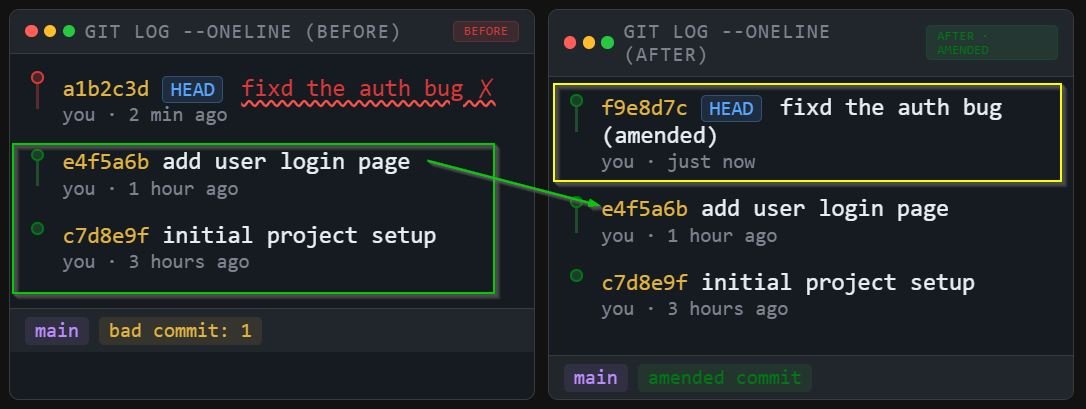
# Fix the last commit message only
git commit --amend -m "fix(auth): resolve token expiry on refresh"

# Add a forgotten file to the last commit
git add forgotten-file.js
git commit --amend --no-edit   # --no-edit keeps the message unchanged

# Open editor to rewrite message interactively
git commit --amendWhat Git Amend Actually Does
--amend discards the last commit and creates a brand new one with a different hash. From your perspective it feels like editing, but Git creates a new commit object. This is why it rewrites history — treat it accordingly.When Git Amend Beats Removing the Commit
Best Use Cases for git amend last commit
• You forgot to include one small file in an otherwise perfect commit.
• You want to update the author or timestamp of the last commit.
• You need a fast, single-command fix without disrupting your workflow.
Don’t Amend Public Commits
git reset, git commit --amend rewrites history. Never amend a commit that has already been pushed to a shared branch. Your colleagues’ local copies will diverge, causing confusing merge conflicts. Reserve amend for local-only commits.Git Remove Last Commit From Remote Repository
Removing a commit locally is only half the battle when it has already been pushed. To propagate the removal to your remote, you need a force push. This is where things get risky in a team environment.
# Step 1: Remove the commit locally first
git reset --soft HEAD~1   # or --hard if discarding

# Step 2: Force push to overwrite remote history
git push --force origin main

# ─── SAFER ALTERNATIVE ───────────────────────
# --force-with-lease checks if anyone else has pushed
# since your last fetch. Much safer in team settings.
git push --force-with-lease origin mainForce Push Risks in Teams
--force push overwrites the remote regardless of what others have pushed since your last fetch. If a colleague pushed a commit after you, you’ll silently erase their work. Always prefer --force-with-lease — it refuses to push if the remote has diverged, protecting your team’s history.Why –force-with-lease Is the Right Choice
# --force-with-lease in action
git push --force-with-lease origin feature/auth

# If someone else pushed after you, Git refuses:
error: failed to push some refs to 'origin'
hint: Updates were rejected because the remote contains
hint: work that you do not have locally.

# Safe — fetch first, then re-attempt
git fetch origin
# Re-evaluate whether a force push is still appropriateTeam Protocol Before Force-Pushing
- Always communicate with your team before force-pushing a shared branch.
- Prefer creating a new branch and opening a PR over rewriting
mainordevelop. - After a force push, all collaborators must run
git fetchand then reset their local branch to match the remote. - Many teams protect
mainat the repository level to prevent force pushes entirely.
Git Revert Last Commit (Safe Alternative)
git revert is the history-preserving alternative to git reset. Instead of removing the commit, it creates a new commit that does the opposite of the target commit — effectively undoing its changes while keeping a full, honest audit trail. This is the correct tool for undoing changes on shared branches.
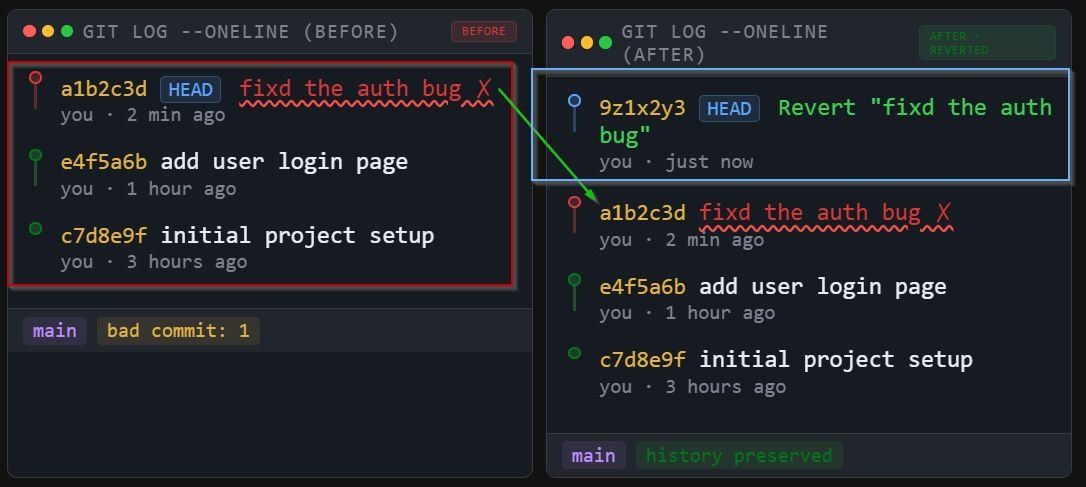
# Revert the most recent commit
git revert HEAD

# Git opens your editor for the revert commit message.
# Save and close to complete.
[main f3a1b2c] Revert "fix(auth): resolve token expiry"
 1 file changed, 3 insertions(+), 5 deletions(-)

# No force push needed — revert adds a new commit
git push origin mainWhat git revert Creates
git revert HEAD, your log will have both the original commit AND a new “Revert …” commit on top. The code returns to its pre-commit state, but the history remains intact. Anyone who pulls will see exactly what happened and why.When NOT to Rewrite History
Do Not Use git reset On These
• Any branch with open pull requests — rewriting history invalidates review threads and forces reviewers to start over.
• Shared feature branches — if your colleague has already pulled, a reset will diverge your histories.
• Commits older than ~24 hours on a team project — the older the commit, the more likely someone has built on top of it.
Rule of Thumb
git reset or git amend. Pushed / shared commits: always use git revert. This single rule prevents 90% of force-push disasters.Git Remove Last Commit From Branch or Local Only
Understanding the local vs remote distinction is critical when you need to git remove last commit from branch or only from your local copy.
Local-Only Removal
If your commit exists only in your local repository (you haven’t pushed yet), any of the git reset variants will remove it cleanly. No remote is involved, no coordination needed.
# Confirm the commit hasn't been pushed yet
git log origin/main..HEAD --oneline
a1b2c3d Your local-only commit

# Safe to reset locally — no remote impact
git reset --soft HEAD~1Remove Commit From a Specific Branch
To git remove last commit from local on a specific branch without affecting others, always ensure you’re on the right branch first:
# Confirm your current branch
git branch
* feature/payment-gateway
  main
  develop

# Reset only affects the current branch
git reset --mixed HEAD~1

# main and develop are completely unaffectedTracking Branches Can Confuse You
git status will show your branch is “behind” the remote by one commit. This is expected. Don’t panic and git pull — that would bring the old commit back. Only push with --force-with-lease if you want the remote to match your rewritten local history.Common Mistakes When Removing Last Commit
Even experienced developers make these errors. Here’s what to watch out for:
Mistake 1: Losing Changes With –hard by Accident
Common Pitfall — Wrong Reset Mode
--hard out of habit or copy-paste, not realising they wanted --soft. The fix after the fact is git reflog — but only if you act before Git’s garbage collector runs (typically after 30 days).Mistake 2: Force Pushing Without Coordinating
# ❌ DANGEROUS on shared branches
git push --force origin main

# ✅ SAFER — respects others' pushes
git push --force-with-lease origin feature/my-branchMistake 3: Resetting on the Wrong Branch
Always run git branch or check your shell’s Git prompt before resetting. Resetting the wrong branch — especially if it’s main — can have serious consequences for the entire team.
Mistake 4: Pulling After a Reset
After a local reset, Git reports your branch is “behind” the remote. Running git pull at this point will re-introduce the commit you just removed. Either force-push to update the remote, or accept the state and leave the remote alone.
Mistake 5: Amending Already-Pushed Commits
Running git commit --amend on a commit that was already pushed creates a divergence. Your collaborators’ git pull will fail or create an unwanted merge commit. Treat amend the same as reset — local only.
Quick Comparison Table – Best Method to Use
Use this reference table to quickly decide which approach fits your situation when you need to remove, fix, or undo your last commit:
| Command | Removes Commit? | Keeps Changes? | Safe for Shared? | Best For |
|---|---|---|---|---|
| git reset –soft HEAD~1 | ✅ Yes | ✅ Staged | ❌ Local only | Re-commit with fixes |
| git reset HEAD~1 | ✅ Yes | ✅ Unstaged | ❌ Local only | Re-stage selectively |
| git reset –hard HEAD~1 | ✅ Yes | ❌ Deleted | ❌ Local only | Discard entirely |
| git commit –amend | Replaces it | ✅ Yes | ❌ Local only | Fix message / add files |
| git revert HEAD | ❌ Preserves | ✅ New commit | ✅ Yes | Undo on shared branch |
| git push –force | From remote | Depends on reset | ❌ Dangerous | Solo branch only |
| git push –force-with-lease | From remote | Depends on reset | ⚠️ With caution | Safer remote rewrite |
Decision Shortcut
git reset or git commit --amend. Already pushed to a shared branch? → Use git revert HEAD. No exceptions.Conclusion
Knowing how to git remove last commit safely is one of those foundational Git skills that saves you from costly mistakes. Here’s the condensed wisdom from this guide:
- Use
git reset --soft HEAD~1when you need to git reset last commit and keep your work staged for a cleaner recommit. - Use
git reset --hard HEAD~1when you need to git discard last commit entirely — but double-check before running it. - Use
git reset HEAD~1(mixed, default) when you want to re-stage files selectively after removing the commit. - Use
git commit --amendto git amend last commit — the fastest fix when the changes are right but the commit metadata isn’t. - Always use
git push --force-with-leaseover bare--forcewhen you must update a remote. - Use
git revert HEADfor any commit already shared with your team. It is the safe, non-destructive path. - When in doubt about whether to git cancel last commit or preserve history, revert wins.
The golden rule: local history is yours to rewrite freely; shared history is a contract with your team. Master that distinction, and you’ll handle any commit mistake with confidence.