Learn how to delete local and remote Git branches safely with simple commands and real examples. This step-by-step guide covers force delete, deleting current branches, removing remote branches, and fixing common Git branch deletion errors.
Table of Contents
How to Delete a Local Branch in Git
When you finish working on a feature or a fix, your local branch becomes clutter. Knowing how to delete a local branch in Git cleanly — without accidentally losing work — is one of the most frequently needed Git operations in a daily workflow.
Git Command to Delete a Local Branch
The standard command to delete branch in Git locally is:
git branch -d branch-nameThis is the safe version of the delete command. Git will refuse to delete the branch if it contains commits that haven’t been merged into your current branch.
What the -d Flag Means
The -d flag stands for –delete. It tells Git to remove the specified branch reference from your local repository. This flag performs a safe delete — it checks whether all commits in that branch are reachable from the branch you’re currently on (or from HEAD). If unmerged work exists, Git prints an error and the branch is left intact.
What “safe” means here
Example of Deleting a Local Branch
Say you just merged a feature branch called feature/login-page into main. Here is how you delete it locally:
git checkout main
git branch -d feature/login-pageTerminal Output
The commit hash in parentheses is the last commit on that branch. You can use it to restore the branch later if needed with git branch feature/login-page a3f91bc.
How to Force Delete a Git Branch
Sometimes the safe -d flag won’t work — Git stops you because the branch contains commits not yet merged. In those cases you need to force delete a Git branch using a different flag.
Use git branch -D
The uppercase -D flag is shorthand for --delete --force. It bypasses the merge check entirely:
git branch -D branch-nameIrreversible without the commit hash
-D.When You Should Force Delete a Branch
Force deletion is appropriate in these situations:
- A pull request was closed without merging and the work is intentionally discarded.
- You created an experimental branch that turned out to be a dead end.
- A branch was merged via squash or rebase, so the individual commits are not in the target branch history, but the work is.
- A branch was synced via a remote rebase and the local history differs from the merged result.
Cleaning up a squash-merged PR branch
-d flag raises an error even though the work is safely in main. Use -D here.git branch -D feature/payment-refactor
Deleted branch feature/payment-refactor (was 7dc32aa).Common Warning Messages
When you try -d on an unmerged branch, Git stops you with this warning:
Git Error
If you are sure you want to delete it, run ‘git branch -D feature/payment-refactor’.
This is exactly the information you need. Git tells you the safe flag failed and shows you the force-delete command. Read it carefully before deciding to proceed.
How to Delete a Remote Branch in Git
Local branch cleanup is only half the job. After merging a pull request, the remote tracking branch on GitHub, GitLab, or Bitbucket also needs to go. Here is everything you need to know to delete a remote branch in Git.
Git Command to Delete a Remote Branch
The modern command to delete a remote branch uses the --delete flag with git push:
git push origin --delete branch-nameReplace origin with the name of your remote if it differs, and branch-name with the actual branch. This sends a delete instruction to the remote server and removes the branch pointer there.
Old Syntax vs New Syntax
Before Git 1.7.0 introduced the --delete flag, developers used a colon-prefix syntax to push an empty reference:
# Old syntax (still works, but less readable)
git push origin :branch-name

# Modern syntax (recommended)
git push origin --delete branch-nameBoth commands do exactly the same thing. The colon syntax still works in any modern Git version, but the --delete form is far more readable, especially when reading scripts or automation logs months later.
Verify the Remote Branch Was Removed
After deleting, confirm the remote branch no longer exists:
git branch -r

  origin/HEAD -> origin/main
  origin/main
  origin/develop
# feature/login-page is goneThe -r flag lists remote-tracking branches. If the deleted branch still appears, run git fetch --prune to sync your local remote references with the server state.
Prune stale remote references automatically
git config --global fetch.prune true. This keeps your remote-tracking list clean without manual --prune flags.How to Delete Local and Remote Branches Together
Git does not have a single atomic command to delete local and remote branch in one shot. The two operations are handled separately, but running them back-to-back takes only seconds. Here is the cleanest workflow.
Delete Local First
Start with the local branch. Make sure you are not on it:
git checkout main
git branch -d feature/user-auth
Deleted branch feature/user-auth (was b8e124f).Delete Remote Branch After Cleanup
Immediately follow with the remote delete:
git push origin --delete feature/user-authTerminal Output
– [deleted] feature/user-auth
One Workflow for Pull Request Cleanup
After a PR merges on GitHub, use this two-command pattern every time:
Full cleanup after a merged pull request
# 1. Switch away from the branch
git checkout main

# 2. Pull the latest merged state
git pull origin main

# 3. Delete locally (safe)
git branch -d feature/user-auth

# 4. Delete remotely
git push origin --delete feature/user-auth
GitHub auto-delete setting
Git Delete Current Branch: Why It Fails
One of the most confusing Git errors beginners encounter is trying to delete the branch they are currently on. Understanding why this fails makes the fix obvious.
You Cannot Delete the Checked-Out Branch
When you run the git delete current branch command while on that branch, Git refuses:
git branch -d feature/search
# (while currently on feature/search)Git Error
This is a safety mechanism. HEAD is a pointer to your current branch. If Git deleted the branch HEAD points to, your working tree would have nowhere to live.
Switch to Another Branch First
The fix is always the same: move to a different branch before deleting.
git checkout main
# or using the modern syntax:
git switch main

git branch -d feature/search
Deleted branch feature/search (was c4d12e0).Delete the Previous Branch Safely
Git keeps a reference to the branch you were on before your last checkout. The @{-1} notation lets you reference it:
# Switch to main, then immediately delete the branch you just left
git switch main
git branch -d @{-1}This is useful in shell scripts where you do not want to hardcode the branch name.
Common Git Branch Delete Errors and Fixes
Even experienced developers run into branch deletion errors. Here are the four most common ones with their exact error messages and solutions.
“Branch Is Not Fully Merged”
Error message
If you are sure you want to delete it, run ‘git branch -D feature/new-ui’.
Cause: The branch has commits that are not reachable from your current branch.
Fix: Either merge the branch first, or use -D if the work is intentionally discarded (squash merge, closed PR, or abandoned experiment).
# Option A: merge first, then safely delete
git merge feature/new-ui
git branch -d feature/new-ui

# Option B: force delete (commits will be lost)
git branch -D feature/new-ui“Cannot Delete Branch Checked Out”
Error message
Cause: You are trying to delete the branch HEAD currently points to.
Fix: Switch to any other branch first, then delete.
git switch main
git branch -d develop“Remote Ref Does Not Exist”
Error message
Cause: The branch was already deleted on the remote (perhaps by a teammate or via the GitHub UI), but your local remote-tracking references are stale.
Fix: Prune your remote references and verify the branch is gone.
git fetch origin --prune
git branch -r
# Confirm the branch is no longer listedPermission Denied Errors
Error message
To https://github.com/org/repo.git
! [remote rejected] feature/blocked (deletion of the current branch prohibited)
Cause: The remote has branch protection rules in place, or the branch is the default branch of the remote repository.
Fix: Check your repository’s branch protection settings. You need admin access to override these rules, and in most cases you should not — they exist for good reason.
Do not disable branch protection to delete
main, master, or a release branch. Temporarily disabling protection to delete it is almost never the right action. Check with your team first.Best Practices Before Deleting Git Branches
Deleting the wrong branch — especially remotely — can disrupt your team’s work. These habits prevent most deletion-related accidents.
Check Merged Branches
Before deleting anything, see which local branches have already been merged into your current branch:
# List local branches already merged into main
git branch --merged main

  feature/login-page
  feature/search
  bugfix/null-pointer
* main

# List branches NOT yet merged
git branch --no-merged mainOnly branches listed under --merged are safe to delete with the -d flag. Treat everything under --no-merged with caution.
Avoid Deleting Protected Branches
Before running a command to delete branch in Git on the remote, verify the branch name visually. A typo like mai n vs main won’t match, but on a large team with many branches it is easy to pass the wrong name.
Dry-run with branch listing first
git branch -r | grep feature/my-branch to confirm the branch exists and you have the exact name right before deleting it remotely.Keep Main and Production Branches Safe
Configure branch protection on your hosting platform and also be disciplined locally. A healthy branch deletion practice looks like this:
| Branch type | Delete locally? | Delete remotely? |
|---|---|---|
| feature/* after merge | Yes, with -d | Yes, after PR merges |
| bugfix/* after merge | Yes, with -d | Yes, after PR merges |
| release/* after deploy | Keep for reference | Consult team policy |
| main / master | Never | Never |
| develop / staging | Never | Never |
Never delete main or production branches
-D, do not touch main, master, production, or any branch your CI/CD pipeline deploys from. Branch protection rules are your safety net, but your own discipline is the first line of defense.Frequently Asked Questions
How do I delete a branch both locally and remotely?
Run these two commands in sequence. First, switch off the branch and delete it locally with git branch -d branch-name. Then delete it on the remote with git push origin --delete branch-name. There is no single command to do both in one step, but these two together handle the full git delete local and remote branch operation cleanly.
Can I restore a deleted Git branch?
Yes — if you have the last commit hash. When Git prints the deleted branch message, it shows the commit hash in parentheses, for example Deleted branch feature/x (was a3f91bc). You can recreate the branch with git branch feature/x a3f91bc. If you lost the hash, use git reflog to find recent commits and locate the branch tip from there. Commits are only permanently gone after Git’s garbage collector runs, typically after 30 days.
What is the difference between-dand-D?
The lowercase -d is a safe delete — it checks whether all commits on the branch are already in your current branch’s history before deleting. If they are not, it errors out. The uppercase -D is a force delete — it skips that check and deletes unconditionally. Use -d by default and only reach for -D when you understand why the merge check failed and are sure the work is not needed.
Does deleting a branch delete commits?
Not immediately. Deleting a branch removes only the label (the branch pointer) that points to a chain of commits. The commits themselves remain in the repository’s object store. However, commits that are no longer reachable from any branch, tag, or HEAD become candidates for garbage collection. By default, Git waits 30 days before pruning unreachable objects, giving you a window to recover using git reflog or the commit hash.
Conclusion
Keeping your branch list clean is a low-effort habit with high payoff. It reduces cognitive load, speeds up tab-completion, and prevents the confusion of working in a repository with dozens of stale branches.
The key distinction to carry forward: always try -d first and only escalate to -D when you understand why Git is stopping you. For remote cleanup, make git push origin --delete branch-name part of every PR merge routine — or let your hosting platform automate it.
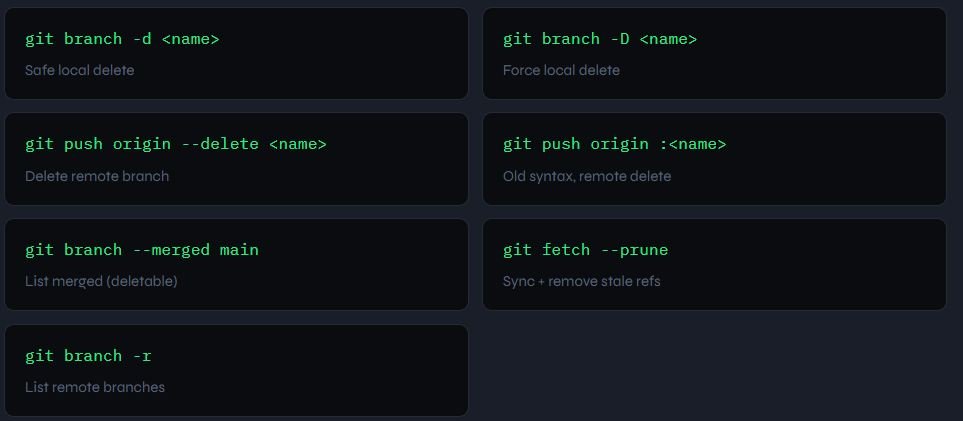
Quick Recap of Git Delete Branch Commands
| Command | What it does |
|---|---|
| git branch -d <name> | Safe-delete a local branch (checks merge status) |
| git branch -D <name> | Force-delete a local branch (skips merge check) |
| git push origin –delete <name> | Delete a branch on the remote |
| git push origin :<name> | Old syntax for remote delete (still works) |
| git branch –merged main | List branches already merged (safe to delete) |
| git fetch origin –prune | Sync remote tracking refs, remove deleted branches |
| git switch main && git branch -d <name> | Switch away then delete (fixes checked-out error) |
Recommended Cleanup Workflow
After every merged or closed pull request, run this four-step sequence:
# Step 1 — move to your base branch
git switch main

# Step 2 — pull latest and prune stale remotes
git pull origin main --prune

# Step 3 — delete local branch (safe)
git branch -d feature/my-feature

# Step 4 — delete remote branch (if not auto-deleted)
git push origin --delete feature/my-featureThis four-step pattern covers everything: keeping your local base branch current, pruning stale remote references, and fully removing the merged branch from both local and remote — the complete git delete local and remote branch workflow in under a minute.
All 7 Branch Delete Commands at a Glance
You may also like: How to Delete Multiple Git Branches | All Old Local Branches Except Master to quickly clean up stale local branches, and How to Delete Branches in GitHub, GitLab, Azure DevOps & Bitbucket | Automatically After Merge to learn how branch deletion works across popular Git platforms and automate repository cleanup.